

Mobile Dolphin Card Photo Upload & Requirements
Mobile Dolphin Card Photo Requirements
Photo Requirements
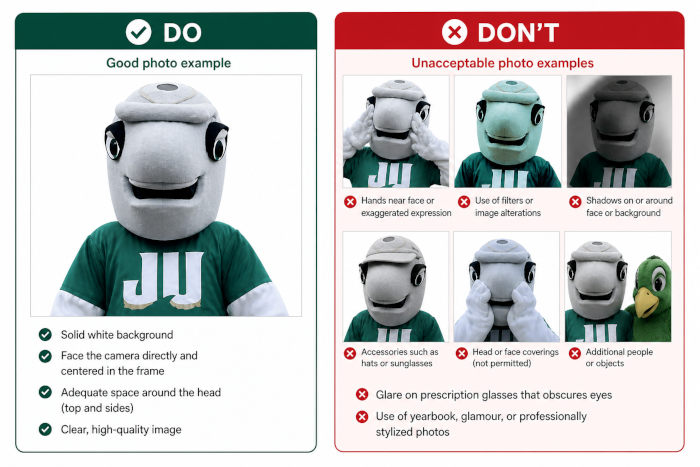
To ensure your ID photo is accepted, please follow these guidelines:
- Use a solid white background
- Face the camera directly with your head centered in the frame
- Leave adequate space around your head (top and sides)
- Submit a clear, high-quality image (minimum 32 KB and 300 × 300 pixels resolution)
Photo Guidelines and Restrictions
The following may result in your photo being rejected:
- Hands near your face or exaggerated facial expressions
- Use of filters or image alterations
- Shadows cast on or around your face or background
- Accessories such as hats or sunglasses
- Head or face coverings (unless worn for religious or medical purposes)
- Glare on prescription glasses that obscures the eyes
- Additional people or objects visible in the photo
- Use of yearbook, glamour, or professionally stylized photos
How to Upload Your Mobile Dolphin Card Photo
Before beginning the online photo submission process, review your photo against the examples provided on this page. Ensure your image meets the listed requirements. If it does not, please retake the photo to avoid delays or the need to repeat the submission process.
For the best experience, complete the steps below using your mobile device and the Transact eAccounts app:
- Download the Transact eAccounts app.
The Dolphin Card is available to all enrolled students and current employees. Tap your iPhone, Apple Watch, Samsung Galaxy, or other eligible Android phones at readers across campus to conveniently use your Dolphin Card. Your Mobile Dolphin Card acts just like your physical card, and now you can add it to your preferred digital wallet.
Download the eAccounts App to get started!


- Open the app and select Jacksonville University from the list of schools.
- Log in using your institutional credentials and complete multi-factor authentication (Okta), if prompted.
- Tap the settings icon in the top-right corner of the screen.
- Select “Submit ID Photo” and tap “Get Started.”
- Review and accept the Terms and Conditions.
- Follow the on-screen instructions to upload your photo and a valid ID document (such as a current driver’s license, passport, or other government-issued ID).
- Tap “Submit & Sign Out.” A confirmation message will appear on your screen, and you will also receive an email confirmation.
Once your photo has been reviewed and approved, you will receive additional instructions via email for accessing your mobile credential.