

JU's Mobile Dolphin Card FAQ
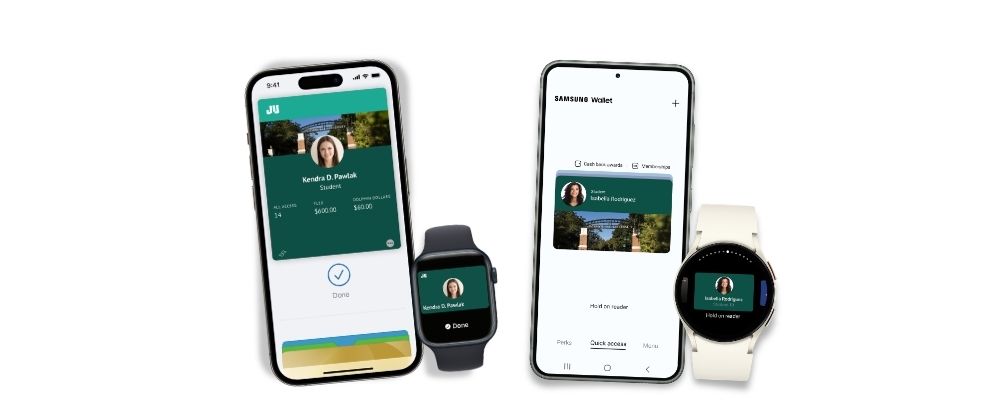
Your JU Dolphin Card is now available in Apple Wallet, Google Wallet, and Samsung Wallet!
The Dolphin Card is available to all enrolled students and current employees. Tap your iPhone, Apple Watch, Samsung Galaxy, or other eligible Android phones at readers across campus to conveniently use your Dolphin Card. Your Mobile Dolphin Card acts just like your physical card, and now you can add it to your preferred digital wallet.
Download the eAccounts App to get started!


Getting Started
Minimal setup is required to use your Mobile Dolphin Card. Most users can begin using their Dolphin Card on their phone in minutes. An approved photo ID is required, and a student, staff, or faculty member's Jacksonville University ID number.
Photo Submission/Preparation
- Once you have received your Jacksonville University email address, please submit your
photo to be displayed on your Dolphin Card:
- Please review our photo requirements
- Upload a photo for your Dolphin Card. Photos will generally be approved within a few business days.
- If you haven’t done so already, set up your email address and multi-factor authentication login by contacting IT Help Desk.
- Please review our photo requirements
Setup & System Requirements
Frequently Asked Questions
Where can I use my Dolphin Card?
- Door Access (Undergraduate student spaces)
- Laundry
- Libraries
- Dining Hall
- Bookstore
How do I update information on my Dolphin Card?
Name information on the Dolphin Card comes to us from the university’s core business systems and needs to be updated there. Students should contact the Registrar’s Office. Faculty and staff should contact their HR representative to request updates. Once changes are completed, the updates will sync to the Dolphin Card on your phone within 48 hours.
Why are my account balance(s) not displaying?
- Account balances are currently only displayed on Apple & Samsung Galaxy devices
- If your account balances are $0, they will not display until funds are added.
- If you have available funds that are not displaying, please contact Campus Security at (904) 256-7585 or email security@ju.edu.
Why do I have a negative balance on my Dolphin Card?
A negative balance can occur if you make a transaction when a retail device is offline. When the device comes back online and the transaction is posted, you will see a negative balance if there are not enough funds in your account to cover the transaction.
I used my credit card at a participating retail location when I meant to use my Dolphin Card. What can I do to correct my payment source?
Return to the location of the sale and ask the store to issue a credit card refund, then process the transaction against your Dolphin Card.
I am graduating or leaving the University. What happens to my Mobile Dolphin Card?
As with your physical Dolphin Card, your Mobile Dolphin Card will become inactive when you no longer meet eligibility requirements. If you transfer to another participating program or department at Jacksonville University, your credential will stay active and update accordingly.
I am not having success adding my Dolphin Card to my device. Who can help me?
Contact Campus Security at: (904) 256-7585
How do I change or recover my school login password?
Contact Campus Security at: (904) 256-7585
How do I activate and install the multi-factor authentication?
Instructions can be found at https://www.ju.edu/it/
Do I still need my physical Dolphin Card?
We recommend you retain your physical Dolphin Card in a secure location as a back-up should you lose a device.
Can I still use my physical Dolphin Card once I have created my Mobile Dolphin Card?
Yes, your physical Dolphin Card will continue to function after you have added your Dolphin Card to your device. Remember, the Mobile Dolphin Card is a privilege and benefit of being part of the Jacksonville University community. Anyone found to be misusing their physical card or Mobile Dolphin Card will be subject to the applicable Code of Conduct or HR policies regarding fraud and/or misconduct.
I already have the Transact eAccounts mobile app installed. Do I need to update?
Yes, you will need to install the updated version of the Transact eAccounts mobile app.
How do I update the Transact eAccounts mobile app?
On your device, visit the App Store or Google Play Store and search Transact eAccounts. The store will prompt you to install any required updates.
My balance is different on my device than in Transact eAccounts?
Confirm your device is not in Airplane Mode or experiencing any other service interruption. Updates cannot be made when there is no connecting service to sync data between Transact eAccounts and your device. The Transact eAccounts app will display the most current information.
Securing Your Account
What should I do if I lose my card or device, or if I believe there has been fraudulent use of my credential?
- During regular business hours, contact Campus Security at (904) 256-7585 to notify us to deactivate the Dolphin Card. Be sure to specify whether the physical card, watch, and/or phone version of the card should be deactivated. Any device not specified to be suspended will remain active.
- If applicable, identify the fraudulent activity: For purchases using your Dolphin Card, contact Campus Security (Email: security@ju.edu) and report the suspected fraud. If door access was involved, e-mail: security@ju.edu.
- In the Transact eAccounts app:
- Click the settings gear in the upper right corner.
- Select the Card Management option.
- Choose the credential you want to deactivate and toggle it off.
- You will receive a confirmation email. Only the selected card will be deactivated. All other credentials will remain active.
- In the Transact eAccounts web version:
- Select Card Services
- Select Deactivate Card
- Select the credential to deactivate and click on “Deactivate Card”
- You will receive a confirmation email. Only the selected card will be deactivated. All other credentials will remain active.
- Additional instructions for Lost/Found Apple devices and Find My iPhone are located at https://support.apple.com/en-us/HT201472
- Additional instructions for Lost/Found Samsung devices and SmartThings Find are located at https://smartthingsfind.samsung.com/
How do I reactivate my credential if I find my lost device?
To reactivate a found device that was suspended, perform the following steps:
In the Transact eAccounts App:
- Click the settings gear in the upper right corner.
- Select the Card Management option.
- Choose the credential you want to reactivate and toggle it on.
- You will receive a confirmation email. Only the selected card will be reactivated.
In the Transact eAccounts Web Version:
- Select Card Services
- Select Activate Card
- Select the credential to reactivate
- You will receive a confirmation email. Only the selected card will be reactivated.
To access the full User Guide & FAQs for each of the available digital wallets, please use the links below:
How to Add Funds to Your Mobile Card
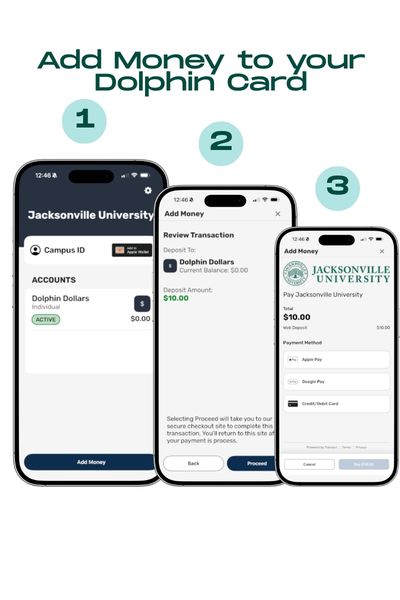
Follow the steps below to add money to your Mobile Card using the eAccounts app:
1. Download the App
Download the eAccounts mobile app.
2. Open the App
Launch the eAccounts app on your mobile device.
3. Select Your Institution
Search for and select Jacksonville University from the list.
4. Log In
Sign in using your university credentials via Okta (your email and password).
5. Navigate to Add Money
Once logged in, tap the “Add Money” button located at the bottom of the screen.
6. Enter Deposit Amount
Type in the amount you would like to add to your account.
7. Continue
Tap the “Next” button to proceed.
8. Review Transaction
Confirm that the deposit amount and account (e.g., Dolphin Dollars) are correct.
9. Proceed to Payment
Tap the “Proceed” button to move to the payment screen.
10. Select Payment Method
Choose your preferred payment option:
- Apple Pay
- Google Pay
- Credit/Debit Card
11. Complete Payment
Follow the prompts to securely complete your transaction.